How to Run Local LLM Models on Your iPhone: A Complete Guide
Run powerful AI models directly on your iPhone — no internet, no cloud, complete privacy.
Running a 3-billion parameter language model on a smartphone with no internet connection sounds futuristic, but it’s entirely possible today on modern iPhones. On-device AI has come a long way, and if you have an iPhone 15 Pro or later, the hardware is capable of making local LLMs practical.
In this guide, I’ll cover everything you need to know about running local LLMs on your iPhone — from understanding what local LLMs are, to which devices are compatible, to a hands-on tutorial with real performance benchmarks. Whether you’re an iOS developer looking to integrate on-device intelligence into your apps, or a tech enthusiast curious about what your iPhone can really do, this guide is for you.
What Are Local LLMs?
Large Language Models (LLMs) are the AI systems that power tools like ChatGPT, Claude, and Gemini. They’re trained on massive amounts of text data and can understand context, generate human-like responses, write code, summarize documents, and much more.
Traditionally, these models run on powerful cloud servers. When you send a prompt to ChatGPT, your query travels to a data center, gets processed by powerful GPUs, and the response is sent back to you. This works well, but it comes with trade-offs: you need an internet connection, there’s latency involved, and your data passes through third-party servers.
Local LLMs flip this model entirely. Instead of relying on the cloud, the AI model runs directly on your device. Your iPhone’s processor handles the inference, and your data never leaves your phone. The catch? Running these models locally requires significant computational power and memory — which is why this has only recently become viable on smartphones, thanks to advances in model compression and dedicated neural hardware.
Benefits of Running LLMs Locally
Complete Privacy: Your prompts and responses never leave your device. No external servers, no logged conversations, no API calls. Perfect for sensitive information.
Works Offline: Airplane mode? No problem. Local LLMs work without internet after the initial model download.
Zero Ongoing Costs: Download the model once, use it forever. No API costs, subscriptions, or usage caps.
Lower Latency: Without server round-trips, responses can feel snappier. Time-to-first-token on my iPhone 17 was 500-2000ms — faster than many cloud services during peak hours.
Apple Intelligence: Uses and Limitations
Before diving into third-party solutions, let’s talk about Apple’s own on-device AI offering: Apple Intelligence.
Apple Intelligence is Apple’s personal AI system, deeply integrated into iOS 26, iPadOS 26, and macOS Tahoe. At its core is a ~3B parameter on-device language model optimized for Apple Silicon. It powers features like Writing Tools, Smart Notifications, Siri enhancements, and Image Generation (Genmoji, Image Playground). The Foundation Models framework also allows developers to tap into this model for their own apps.
However, there are important limitations:
- No Direct Chat Interface: You can’t have a free-form conversation with Apple’s on-device model — there’s no built-in ChatGPT-like experience
- Limited Model Choice: You’re locked into Apple’s model — no swapping in Llama, Qwen, or Mistral
- Feature-Specific: The model is fine-tuned for specific tasks, not general-purpose querying
This is exactly why third-party apps like PocketPal AI exist — they give you direct access to run any compatible open-source model with full control over the experience.
Compatible iPhones for Local LLMs
Not all iPhones can run local LLMs effectively. The key requirements are:
- A17 Pro chip or later (for optimal performance)
- 8GB RAM minimum (required for loading larger models)
- Metal GPU support (for hardware-accelerated inference)
Here’s the full compatibility breakdown:
| Device | Chip | RAM | Support |
|---|---|---|---|
| iPhone 15 Pro / Pro Max | A17 Pro | 8GB | ✓ |
| iPhone 16 / 16 Plus / Pro / Pro Max | A18 / A18 Pro | 8GB | ✓ |
| iPhone 17 / Air / Pro / Pro Max | A19 / A19 Pro | 8-12GB | ✓ |
Older devices like the iPhone 15 (non-Pro) and iPhone 14 series have only 6GB RAM, which significantly limits the size and quality of models you can run. For the best experience with local LLMs, iPhone 15 Pro or later is recommended.
Test Device: iPhone 17
For this guide, I used my personal iPhone 17 to run all the tests. Here are the specs:
| Specification | Value |
|---|---|
| Device | Apple iPhone 17 |
| iOS Version | 26.2 |
| CPU Cores | 6 |
| Total Memory | 7.5 GB |
| GPU | Apple A19 GPU (Metal) |

PocketPal AI’s benchmark screen showing iPhone 17 hardware specifications
Why the A19 Chip Has an Edge
While all compatible iPhones run local LLMs well, the iPhone 17’s A19 chip has a slight advantage thanks to Neural Accelerators built into each GPU core. These dedicated accelerators work alongside the 16-core Neural Engine to speed up AI inference tasks.
When running a local LLM, the model weights are loaded into memory, and the Neural Accelerators help process the matrix multiplications that generate each token. This hardware optimization is why the iPhone 17 achieves ~14 tokens/sec on a 3B model. Users with iPhone 15 Pro or iPhone 16 series will see similar (though slightly lower) performance.
8GB RAM remains the critical bottleneck across all compatible devices — with ~7.5GB available to apps, you can run models up to 4B parameters at good quantization levels.
Metal Support is essential — Apple’s Metal API enables GPU-accelerated inference, which apps like PocketPal AI leverage for maximum performance.
Running Local LLMs on iPhone: Step-by-Step Guide
Now for the hands-on part. Here’s how to set up and run a local LLM using PocketPal AI. These steps work on any compatible iPhone (15 Pro or later).
Why PocketPal AI?
PocketPal AI stands out among the available options because it’s:
- Completely free — no subscriptions or hidden costs
- Open-source — transparent and community-driven
- User-friendly — no terminal commands required
- Feature-rich — Hugging Face integration, custom models, tunable parameters
Step 1: Download PocketPal AI
Head to the App Store and search for “PocketPal AI” or download it directly. The app is free and weighs around 35MB.
Step 2: Download a Model
Once installed, open the app and navigate to the Models section (tap the hamburger menu). You’ll see a curated list of models optimized for mobile devices, including Qwen 2.5, Llama 3.2, Phi-3.5 Mini, and Gemma 2.
For this guide: Qwen2.5-3B-Instruct (Q5_K_M) — a 2.44GB model that offers an excellent balance between quality and performance.

Downloading Qwen2.5-3B-Instruct model in PocketPal AI
Important: Keep the app open during download. iOS doesn’t support background downloads for this type of content. The download typically takes about 7-8 minutes on a decent Wi-Fi connection.
Step 3: Select Model and Start Chatting
Once downloaded, go back to the chat screen, tap the model selector at the top, and choose your downloaded model. You’re now ready to start prompting!
Step 4: Test Offline
To really prove this works offline, enable Airplane Mode before running your test prompts.
Real-World Performance: Test Results
Two test prompts with Qwen 2.5 3B, both run with airplane mode enabled:
Test 1: Creative Writing
Prompt: “Write me an essay on Phases of the moon in 150 words.”
Performance: 67ms/token, 14.91 tokens/sec, 2126ms TTFT

Response about lunar phases — note the airplane mode icon
Test 2: Technical Explanation
Prompt: “Explain how neural networks work in 100 words.”
Performance: 72ms/token, 13.91 tokens/sec, 520ms TTFT
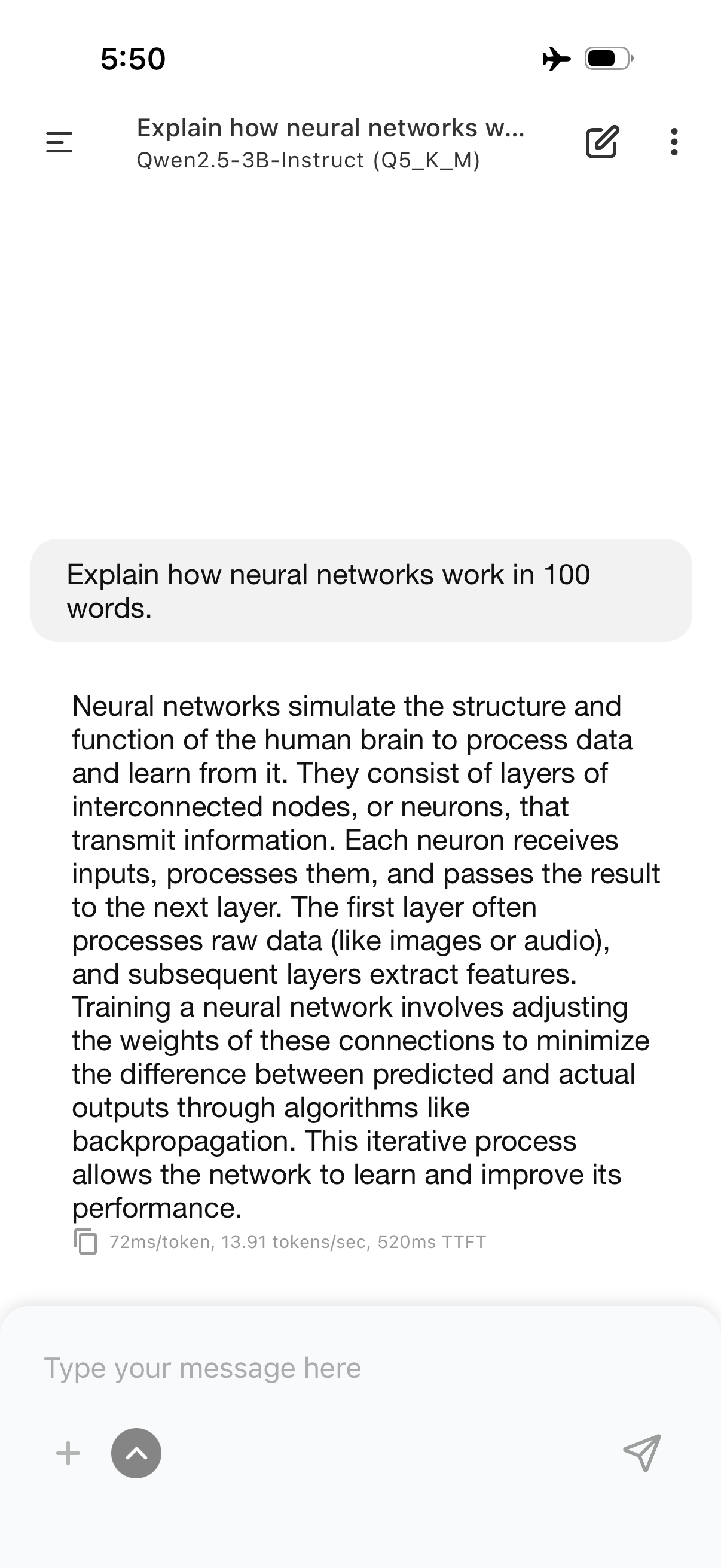
Technical explanation generated entirely on-device
Performance Analysis
Both prompts ran at approximately 14 tokens per second, which translates to a smooth, readable output stream. For context:
- Average human reading speed is about 4-5 words per second
- 14 tokens/sec means the model generates text faster than most people can read it
- The time-to-first-token (TTFT) of 500-2000ms means you start seeing output almost immediately
This is genuinely usable performance. It’s not as fast as cloud-based services with dedicated GPU clusters, but for offline, private, on-device inference? It’s impressive.
Tips for Best Results
Choose the Right Model Size: For 8GB RAM, stick to 1B-4B parameter models. Qwen 2.5 3B is a sweet spot.
Understand Quantization: Q4 = smaller/faster but lower quality. Q5_K_M is a good middle ground.
Write Clear Prompts: Smaller models work better with direct, specific prompts.
Adjust Parameters: Lower temperature (0.3-0.5) for factual responses, higher (0.7-0.9) for creative writing.
Manage Expectations: These are 3B models, not GPT-4. Great for drafts, explanations, and quick tasks.
Conclusion
Running local LLMs on your iPhone is genuinely practical. With PocketPal AI and Qwen 2.5 3B, you get a private, offline AI assistant that performs well for everyday tasks — and it works on any iPhone 15 Pro or later.
The combination of Apple’s A-series chips, 8GB RAM, and Metal-accelerated inference has made on-device AI a reality. iPhone 17 users get a slight edge with Neural Accelerators, but all compatible devices deliver usable performance. Whether you’re concerned about privacy, want offline access, or enjoy tinkering with AI, the tools are here and they work.
Tested on iPhone 17 running iOS 26.2 with PocketPal AI v1.11.7 and Qwen2.5-3B-Instruct (Q5_K_M).